
OBS Studio
You alt-tabbed mid-session. OBS hit a hiccup and stopped recording. You played for another 40 minutes not knowing. That footage is gone.
Mynofi catches this.Mynofi watches OBS Studio, NVIDIA ShadowPlay, and Audacity in the background and fires an instant Windows desktop alert the moment recording starts or stops unexpectedly. 60-second setup. Never lose a clip again.
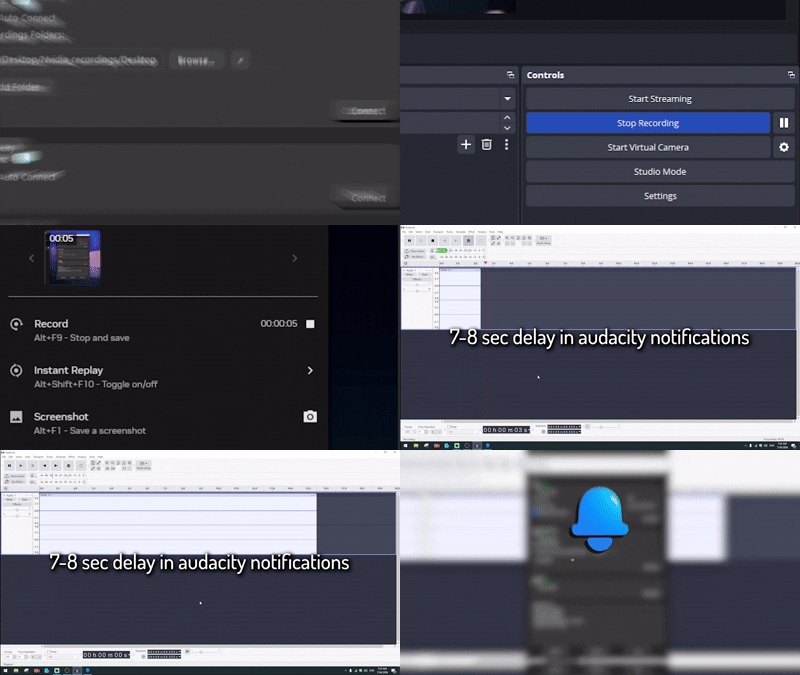
Fix "OBS stopped recording silently"
These aren't edge cases. Silently failed recordings happen to creators of every size, every week.
You alt-tabbed mid-session. OBS hit a hiccup and stopped recording. You played for another 40 minutes not knowing. That footage is gone.
Mynofi catches this.
The recording indicator was buried in the corner. The file didn't save. The folder had filled up silently three sessions ago.
Mynofi catches this.
You didn't hit record. That podcast take, the good one, is gone forever.
Mynofi catches this.Why this exists
This isn’t a big company product. It’s a tool I built because I experienced this exact problem firsthand.
I was recording gameplay. OBS hit an encoder error and stopped. Silently. I kept playing for another 40 minutes, not knowing. When I went to edit, the file was corrupt. That footage is gone forever.
I searched for a simple desktop alarm that would just tell me the instant OBS stops. Nothing like it existed. So I built Mynofi myself.
It does one thing: alerts you the moment OBS, ShadowPlay, or Audacity stops unexpectedly. If you’ve ever lost footage to a silent crash, you know exactly why this matters.
Why you need a dedicated tool
One of the biggest flaws with capture software is the lack of a built-in, highly visible full-screen status overlay. If you game on a single monitor, you can't tell if your OBS recording indicator is active without alt-tabbing. Worse, if your OBS stopped recording silently due to an encoder crash or full hard drive, you won't know until your session is over.
Mynofi solves this by acting as a foolproof failsafe. You don't need to constantly check your second monitor or hunt for an always-on-top widget. Mynofi watches the background processes and uses native Windows Toasts to provide an unmissable desktop alert when recording starts, stops, or crashes. It is the ultimate insurance policy for your footage.
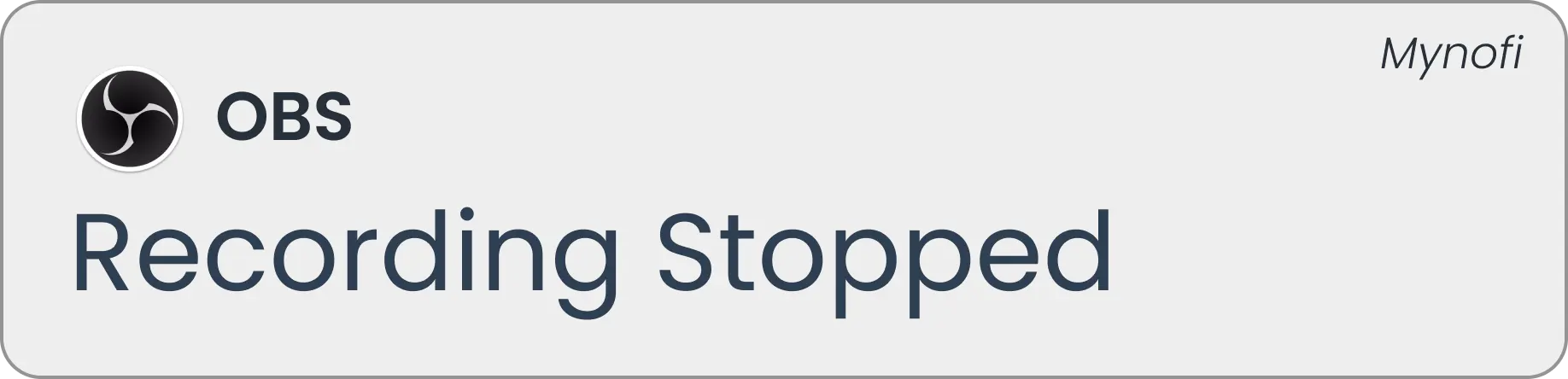
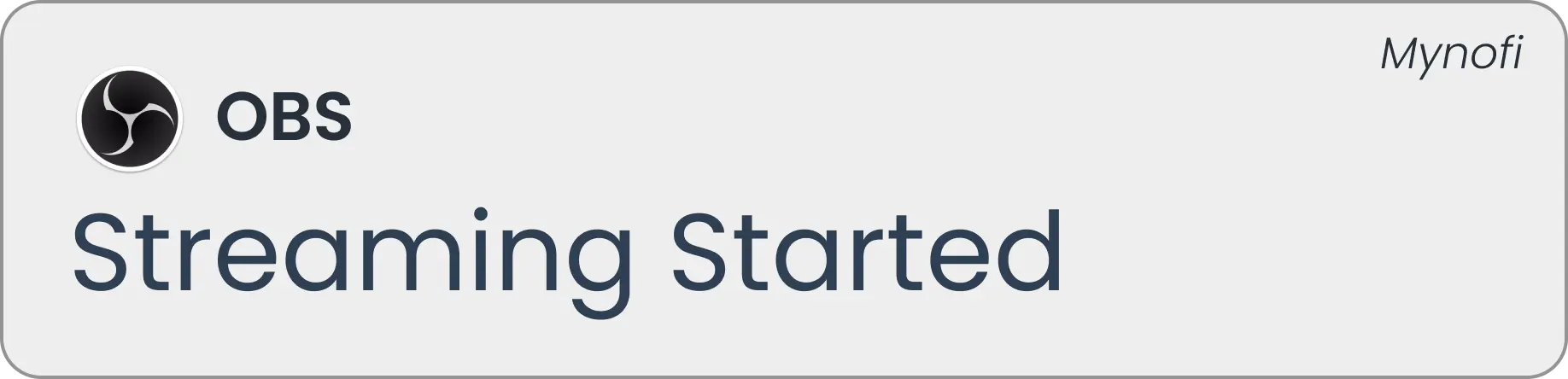
Real notification banners
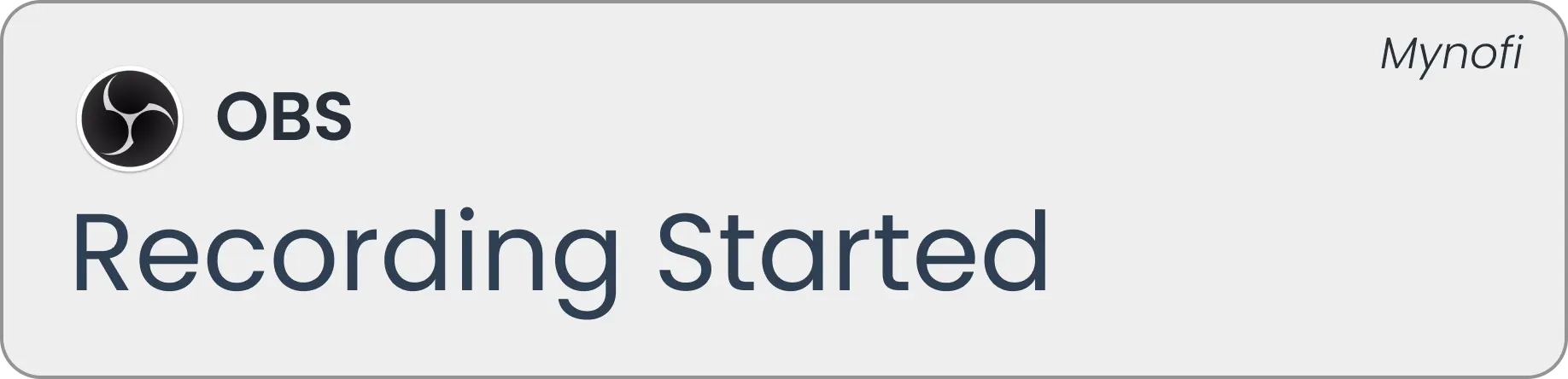
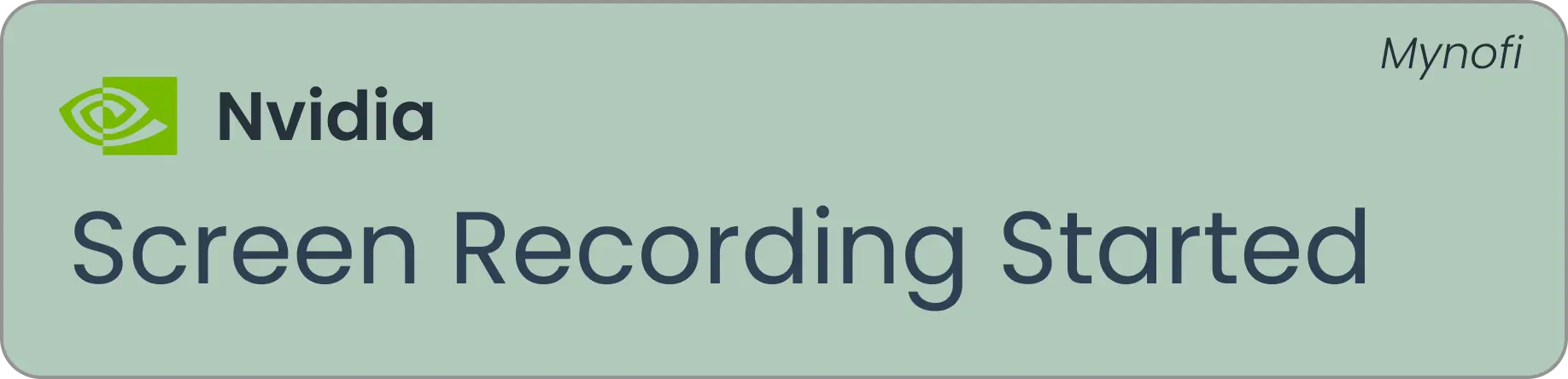
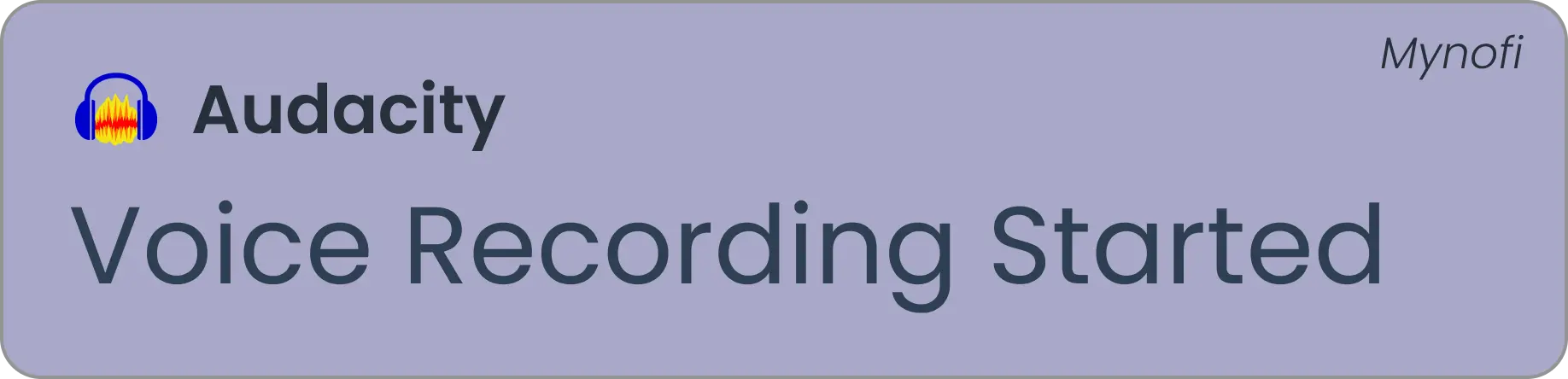
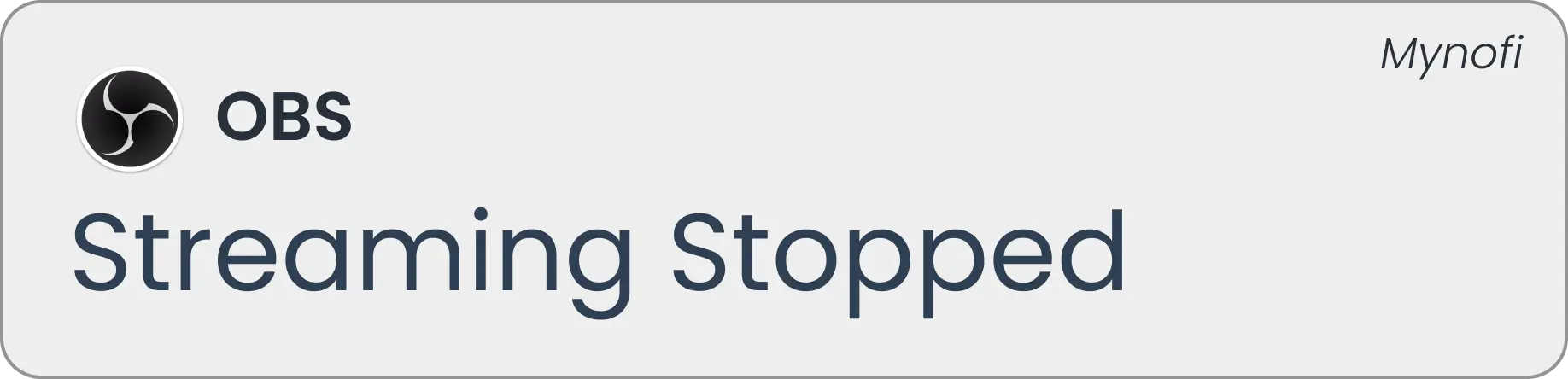
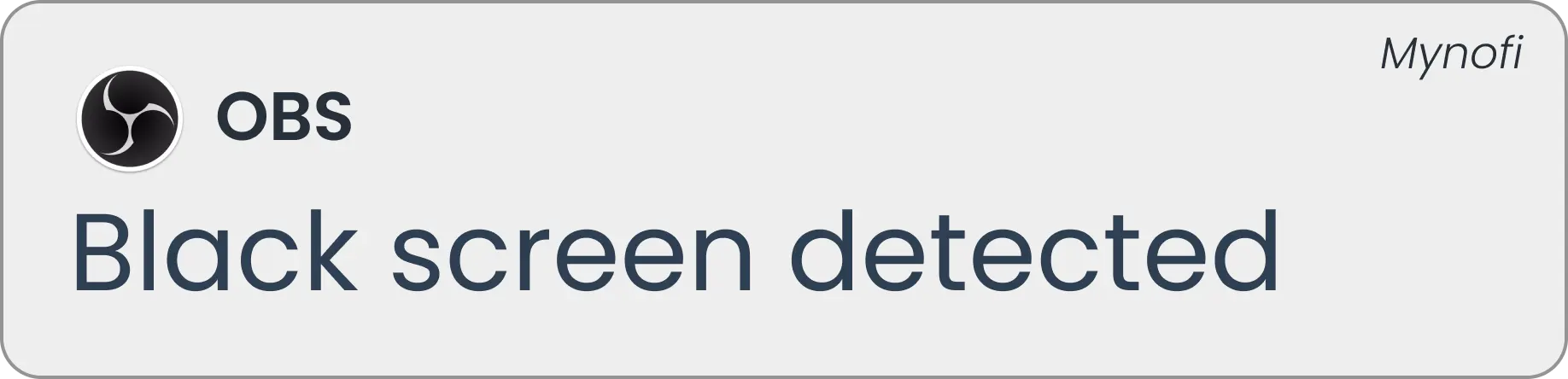
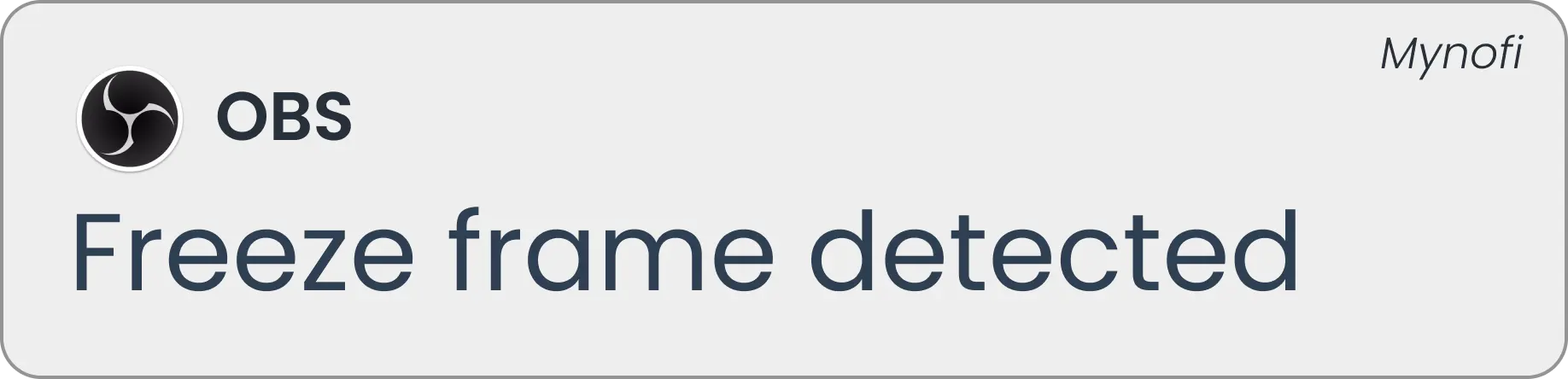
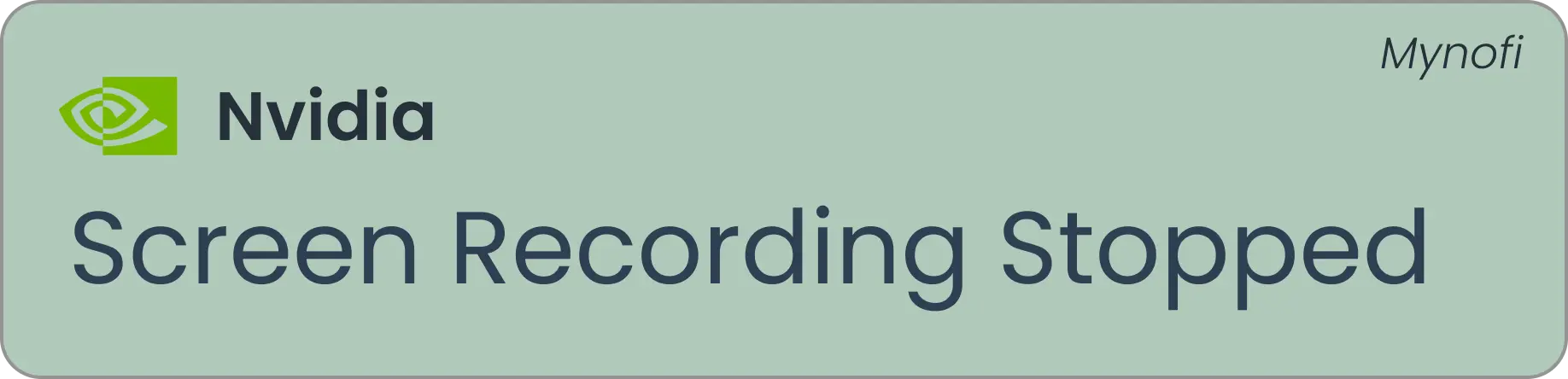
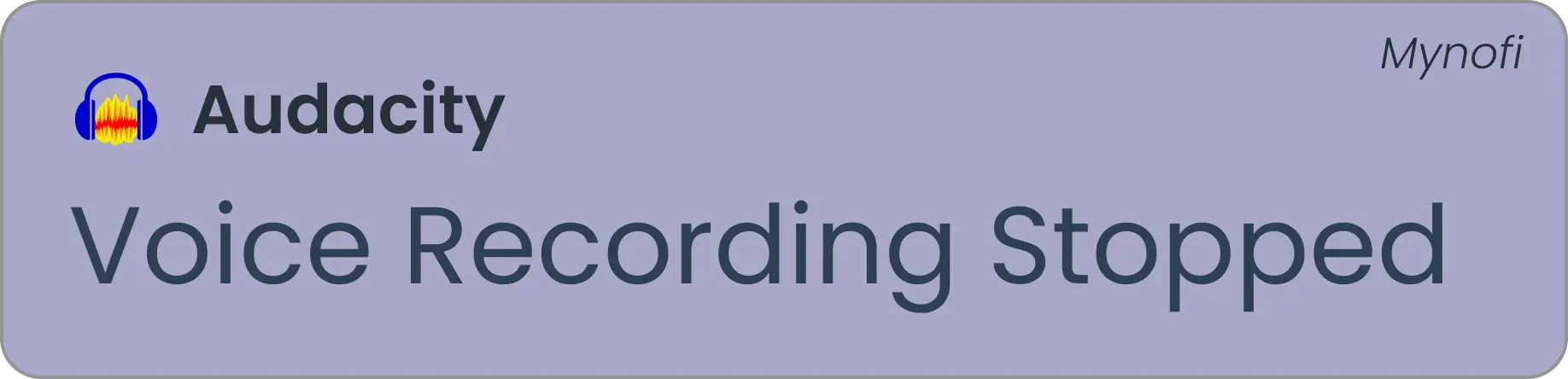
These are the actual notifications Mynofi fires, straight to your Windows desktop, no matter what you're doing.
Setup takes 60 seconds
Mynofi runs in your system tray and watches silently. You only hear from it when something happens.
Free download. Run the installer. Mynofi starts and sits quietly in your Windows system tray. No bloat, no background services.
Enter your OBS WebSocket port, point to your ShadowPlay recordings folder, and enable the Audacity monitor. One click each, done in under a minute.
A Windows desktop toast notification fires the moment recording starts, pauses, or stops across all three tools, simultaneously.
What's included
No subscriptions. No cloud. A focused tool that does one thing well and stays out of your way.
Connects to OBS via local WebSocket. Notifies on recording start, stop, pause, stream start/stop, black screen, and freeze frame detection.
Watches your NVIDIA recordings folder for new clip files. Also works with AMD ReLive, Game Bar, or any custom path.
Detects voice recording start and stop events in Audacity. Catches both intentional stops and unexpected recording failures.
Each event plays an optional chime alongside the visual toast. Volume is adjustable. Fires even when your game is fullscreen.
Lives in your tray. Right-click to open, pause, or exit. Launch-at-startup option turns it into invisible infrastructure.
Under 50MB RAM. Negligible CPU. Doesn't hook into your game process, record your screen, or touch your GPU.
Pricing
One missed recording = hours of your work, gone forever. Mynofi fixes that permanently. Free during our launch review period.
📥 Instant download after purchase. Windows installer, setup in under 2 minutes.
Download Mynofi — FreeSecure checkout via Gumroad, trusted by 100,000+ creators worldwide
Windows installer · ~65MB · v1.0.36 · Instant download after purchase
✓ Works on first launch · ✓ Setup takes under 2 minutes
FAQ
Straight answers. No fluff.
Mynofi is a Windows desktop utility built for streamers, content creators, and podcasters who use OBS Studio, NVIDIA ShadowPlay, or Audacity as their primary recording tools. It solves one specific, costly problem: you don't always know when your software is actually recording, and that missing awareness costs you footage, takes, and time.
Mynofi is currently free during our launch review period. It runs silently in your system tray as a monitoring layer between your recording software and your desktop. When OBS starts recording, Mynofi fires a Windows toast notification. When ShadowPlay saves a clip, Mynofi tells you. When Audacity's session starts or stops, you get a notification, complete with an optional audio chime.
Mynofi's OBS recording notification feature connects to OBS Studio via the built-in OBS WebSocket protocol (available natively in OBS 28+). This is a fully local connection. Your session data never leaves your machine. Mynofi detects recording state changes (started, stopped, paused, resumed), streaming events, and even issues like black screen and freeze frame detection, firing a desktop notification for each.
This is the core problem Mynofi solves. OBS has no built-in mechanism to alert you when a recording stops due to a crash, disk-full error, or encoder failure. Without an external tool, you only discover the failure after you finish your session, when the footage is already gone. Mynofi catches the WebSocket event the instant OBS stops and fires a Windows toast notification immediately, even if OBS is minimized or you are in a fullscreen game. The same applies to NVIDIA ShadowPlay and Audacity. You get notified the second something changes, not after the damage is done.
OBS's built-in recording indicator only appears inside the OBS application window — which is completely hidden when you're playing a fullscreen game. Many streamers lose recordings precisely because they alt-tab, miss the crash, and tab back into their game. Mynofi solves this by firing Windows system-level toast notifications that appear over any fullscreen application, including games running in exclusive fullscreen mode. You see the alert immediately, every single time.
For NVIDIA ShadowPlay, Mynofi watches your designated recordings folder for new files. Reliable detection that also works with AMD ReLive, Windows Game Bar, or any capture tool that saves to a local folder. For Audacity, it monitors session activity to detect when a recording is live, so you always know whether your microphone is capturing.
If you've ever alt-tabbed out of a game and found OBS stopped recording 30 minutes earlier, Mynofi is for you. If you've ever thought you hit record in Audacity but didn't, Mynofi is for you. If you play fullscreen and can never see OBS's status, Mynofi is for you. Currently free during our launch review period — download it and never re-record a lost session again.