Create Transparent Background Videos for OBS Streaming
As a content creator or live streamer, you've probably spent hours perfecting your OBS Studio setup. One of the most professional touches you can add is a transparent background video overlay that removes your webcam background without the hassle of green screens, chroma keying, or complex lighting setups.
In this comprehensive guide, you'll learn how to create transparent background videos specifically optimized for OBS Studio streaming, compare transparent WebM overlays versus traditional green screen chroma key methods, and discover the optimal settings for flawless streaming overlays.
Why Transparent Background Videos Are Perfect for Streamers
Traditional streaming setups require green screens, proper lighting, and constant chroma key adjustments. Transparent background videos offer a modern alternative that eliminates these pain points entirely.
The Evolution of Streaming Overlays
Five years ago, professional-looking streams required expensive equipment. Today, AI-powered background removal technology has democratized high-quality production. Transparent background videos offer several advantages:
- No physical setup required: No green screen, special lighting, or dedicated streaming space needed
- Portability: Stream from anywhere without hauling green screen equipment
- Cost-effective: Eliminate expensive green screens and lighting kits
- Consistent quality: AI background removal works in any lighting condition
- Time-saving: No manual chroma key adjustments every stream
Ready to Create Transparent Background Videos?
Remove backgrounds from your videos in minutes with AI-powered precision
Try Free Background RemoverUnderstanding Transparent Video Formats: WebM vs Others
Not all video formats support transparency. Understanding which format to use is critical for OBS compatibility.
WebM: The Standard for Transparent Video
WebM with VP9 codec is the industry standard for transparent videos. Here's why:
- Native transparency support: VP9 codec includes an alpha channel for transparency
- Excellent compression: Smaller file sizes than MOV or AVI with transparency
- Wide compatibility: Supported by OBS Studio, browsers, and most video software
- Open standard: No licensing fees or proprietary restrictions
Other Transparent Video Formats
| Format | Transparency Support | OBS Compatible | File Size | Best Use Case |
|---|---|---|---|---|
| WebM (VP9) | Yes (alpha channel) | Excellent | Small | Streaming overlays |
| MOV (ProRes 4444) | Yes (alpha channel) | Good | Very Large | Professional editing |
| PNG Sequence | Yes | Good (resource intensive) | Extremely Large | Editing/VFX work |
| MP4 (H.264) | No | Yes (no transparency) | Small | Standard video |
How to Create Transparent Background Videos for OBS: Step-by-Step
Creating transparent background videos for OBS streaming is straightforward with the right tools. Here's the complete workflow:
1 Record Your Source Video
Start with high-quality source footage. While AI background removal is powerful, better source material produces better results:
- Resolution: Record at 1080p minimum (4K if your system can handle it)
- Frame rate: Match your streaming frame rate (typically 30 or 60 fps)
- Lighting: Good lighting improves edge detection and reduces artifacts
- Background contrast: Contrasting background makes AI removal more accurate
- Camera stability: Use a tripod or stable mount to minimize motion blur
2 Remove the Background with AI
Use an AI-powered video background remover to automatically remove the background from your footage. Modern tools use advanced machine learning models like SAM2.1 and BiRefNet for precise subject detection and tracking.
The process typically involves:
- Upload your video file (MP4, MOV, AVI formats supported)
- The AI automatically detects the main subject (you)
- Optionally click to refine the selection
- Wait for processing (usually 1-3 minutes for a 10-second clip)
- Download the result with transparent background
Remove Your Video Background Now
Free AI-powered background removal with no watermarks
Start Removing Backgrounds3 Export as WebM Format
Most background removal tools will automatically export as WebM with transparency. If you're using video editing software, ensure these export settings:
- Format: WebM
- Video codec: VP9
- Alpha channel: Enabled
- Bitrate: 5-10 Mbps for 1080p (quality vs file size balance)
- Audio: Opus codec or remove if unnecessary
4 Import to OBS Studio
Adding your transparent video to OBS is simple:
- Open OBS Studio
- In your scene, click the + button under Sources
- Select "Media Source"
- Give it a descriptive name (e.g., "Webcam Intro")
- Click "Browse" and select your WebM file
- Check "Loop" if you want it to repeat continuously
- Uncheck "Restart playback when source becomes active" for one-time playback
- Click OK
Transparent WebM vs Green Screen Chroma Key: The Complete Comparison
Both methods can achieve similar results, but they have very different workflows, costs, and trade-offs. Here's an in-depth comparison to help you choose the right approach.
Setup Complexity and Cost
Transparent WebM Approach:
- One-time video recording and processing
- No physical equipment needed beyond your camera
- Software cost: Free to $20/month for AI tools
- Setup time: 5-10 minutes per video
Green Screen Chroma Key:
- Requires physical green screen ($30-$200)
- Requires proper lighting ($50-$300 for key lights)
- Dedicated streaming space needed
- Initial setup time: 1-2 hours; adjustments every stream: 10-20 minutes
- Total cost: $80-$500+ for quality setup
Performance Impact
| Factor | Transparent WebM | Green Screen Chroma Key |
|---|---|---|
| CPU Usage | Minimal (pre-rendered) | Moderate to High (real-time processing) |
| GPU Usage | None | Low to Moderate |
| RAM Usage | Low (video file cached) | Low |
| Streaming Bitrate | No impact | Slight increase (more complex scene) |
| Overall Performance | Excellent (best for mid-range PCs) | Good (requires headroom) |
Quality and Flexibility
Transparent WebM Strengths:
- Consistent quality regardless of lighting changes
- Perfect for intros, outros, and transition sequences
- No green spill or color contamination
- Works in any environment
- Can be edited and enhanced before streaming
Transparent WebM Limitations:
- Pre-recorded (not suitable for live webcam overlay)
- Requires re-processing for any changes
- Limited to fixed-length clips
Green Screen Chroma Key Strengths:
- Real-time live webcam removal
- Unlimited duration (works for entire stream)
- Instant adjustments possible
- Natural hair and fine detail rendering (when properly lit)
Green Screen Chroma Key Limitations:
- Sensitive to lighting changes
- Green spill on edges and clothing
- Requires consistent setup and calibration
- Not portable or flexible
- Performance cost during streaming
Best Use Cases for Each Method
Use Transparent WebM Videos When:
- Creating stream intros, outros, or branded segments
- Building transition effects between scenes
- Recording talking head explanations or tutorials
- Streaming from different locations frequently
- Working with a mid-range PC that struggles with chroma key
- You want consistent, professional quality without equipment
Use Green Screen Chroma Key When:
- Streaming live with continuous webcam presence
- You have a dedicated streaming space with controlled lighting
- Your PC has performance headroom for real-time processing
- You need spontaneous, unscripted interactions on camera
- Streaming duration exceeds practical video file lengths
Optimal Settings for OBS Transparent Video Overlays
Getting the best quality requires optimizing both your source video and OBS settings.
Source Video Resolution and Frame Rate
For most streamers, these settings provide the best quality-to-performance ratio:
- 1080p (1920x1080) at 30fps: Standard for most streams, excellent quality, manageable file sizes
- 1080p at 60fps: Smoother motion, ideal for energetic content or gaming transitions
- 720p (1280x720) at 30fps: Good for slower connections or storage concerns
- 4K (3840x2160) at 30fps: Only if you're downscaling in OBS for ultra-sharp edges
OBS Media Source Settings
Configure your Media Source in OBS for optimal playback:
- Restart playback when source becomes active: Enable for scene-triggered playback, disable for manual control
- Loop: Enable for continuous overlays (background animations), disable for one-time intros
- Close file when inactive: Enable to free up memory when switching scenes
- Linear Alpha: Usually disabled; enable only if you notice transparency rendering issues
- Hardware decoding: Enable if supported by your GPU to offload CPU usage
Positioning and Scaling
Proper positioning makes your transparent overlay look professional:
- Corner placement: Standard webcam position - bottom right or bottom left
- Size: Typically 20-30% of screen height for webcam overlays
- Padding: Leave 20-30 pixels from screen edges for breathing room
- Transform: Hold Shift while resizing to maintain aspect ratio
- Filters: Add slight drop shadow for depth (Opacity: 50%, X: 5, Y: 5, Blur: 10)
Advanced Quality Enhancements
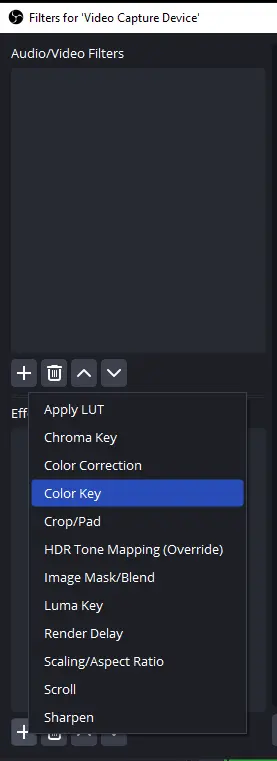
Take your transparent overlays to the next level with these OBS filters:
- Sharpness Filter: Add subtle sharpness (0.1-0.3) to counteract compression softness
- Color Correction: Adjust brightness/contrast to match your stream aesthetic
- Chroma Key (optional): If you notice slight color fringing, add minimal green screen removal
- Scaling Filter: Use "Lanczos" for downscaling, "Bicubic" for upscaling
Create Professional Stream Overlays
Transform your webcam footage into transparent overlays in minutes
Remove Video Background FreeTroubleshooting Common Issues
Transparency Not Working in OBS
If your transparent video appears with a black or white background:
- Verify the file is actually WebM with VP9 codec (not MP4 renamed to .webm)
- Re-export with alpha channel explicitly enabled
- Try toggling "Linear Alpha" in Media Source properties
- Update OBS to the latest version (transparency support improved in recent builds)
- Test the file in VLC or browser to confirm transparency is embedded
Rough or Pixelated Edges
If transparency edges look jagged:
- Increase source video resolution (record at higher quality)
- Use better background removal tool with advanced edge refinement
- Apply slight blur to alpha channel during export (1-2 pixel feather)
- Ensure OBS scaling filter is set to "Lanczos" or "Bicubic"
Large File Sizes
If your WebM files are too large:
- Reduce bitrate (5-8 Mbps is usually sufficient for 1080p)
- Consider 720p resolution if 1080p isn't critical
- Trim unnecessary frames from beginning and end
- Use two-pass encoding for better compression efficiency
- Remove audio track if not needed (significant size reduction)
Creative Ways to Use Transparent Videos in OBS
Beyond basic webcam overlays, transparent videos unlock creative streaming possibilities:
1. Animated Intros and Outros
Create branded stream starts and endings with transparent background animations of yourself introducing the stream or thanking viewers.
2. Transition Effects
Record yourself "walking off screen" or performing an action as a transition between scenes. Set it to play when switching from talking head to gameplay.
3. Picture-in-Picture Commentary
Pre-record commentary or reactions with transparent background, then overlay on gameplay footage for tutorial or reaction content.
4. Lower Thirds and Overlays
Combine transparent video of yourself with traditional lower third graphics for professional-looking "news anchor" style streams.
5. Multi-Person Collaborations
When collaborating remotely, have each person record with transparent background, then composite all videos in OBS for a "same room" appearance.
Conclusion
Transparent background videos offer streamers and content creators a powerful alternative to traditional green screen setups. With AI-powered background removal, creating professional WebM overlays is now accessible to everyone, regardless of budget or technical expertise.
Whether you're creating stream intros, transition effects, or picture-in-picture overlays, transparent videos provide consistent quality, portability, and performance benefits that green screens can't match for pre-recorded content.
The key takeaways:
- Use WebM format with VP9 codec for transparency in OBS
- Record at 1080p 30fps minimum for best quality
- Transparent videos are pre-rendered, saving CPU during streams
- Best for intros, outros, transitions, and fixed-length overlays
- Combine with green screen for ultimate flexibility (use both approaches)
Ready to elevate your streaming setup? Start creating transparent background videos today and join thousands of creators producing professional content without expensive equipment.