Nothing ruins a stream faster than audio that's out of sync with your video. Whether your voice comes before your lips move or your game audio lags behind the action, this guide will show you exactly how to fix it.
🔧 Quick Fix: Use Our Calculator
Skip the math and get your exact offset value instantly.
Open Audio Sync Calculator →Why Does Audio Get Out of Sync?
Audio desync happens because different devices have different processing delays:
- USB Microphones - Process audio through software drivers, adding 20-100ms delay
- Capture Cards - Buffer video frames before sending to OBS, causing 50-200ms delay
- Webcams - Cheaper webcams have slow video pipelines, making audio arrive first
- Sample Rate Mismatch - If your mic runs at 44.1kHz but OBS expects 48kHz, drift occurs over time
How to Find Your Audio Delay
Before fixing the problem, you need to measure it:
- Record a test clip - Open OBS, start recording, and clap your hands clearly on camera
- Open in a video editor - Use VLC, Premiere, or even the Windows Photos app
- Find the clap frame - Step through frame-by-frame until your hands touch
- Find the audio spike - Look at the audio waveform for the clap sound
- Count the frames - How many frames apart are they?
💡 Pro Tip
If you don't have a video editor, you can use VLC Media Player. Press E to step forward one frame at a time.
The Math: Converting Frames to Milliseconds
OBS requires the offset in milliseconds (ms), but you measured in frames. Here's the conversion formula:
Offset (ms) = (Frames ÷ FPS) × 1000
Example: If your audio is 3 frames behind at 60 FPS:
(3 ÷ 60) × 1000 = 50 ms
You would enter -50 in OBS to advance the audio by 50ms.
🧮 Don't Want to Do Math?
Our free calculator does this instantly. Just enter your FPS and frame count.
Use Audio Sync Calculator →How to Apply the Offset in OBS
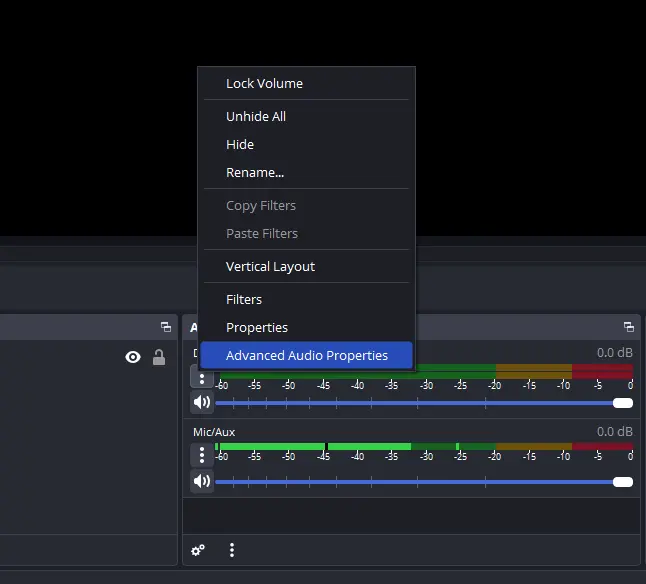
Once you have your offset value, here's how to apply it:
- Open OBS Studio
- Look at the Audio Mixer at the bottom
- Click the ⚙️ gear icon next to any audio source
- Select "Advanced Audio Properties"
- Find the Sync Offset (ms) column
- Enter your calculated value (e.g.,
-50) - Click Close
⚠️ Positive vs Negative
Positive (+50): Delays the audio (use if audio plays BEFORE video)
Negative (-50): Advances the audio (use if audio plays AFTER video)
Preventing Future Sync Issues
To minimize audio drift:
- Match sample rates - Set all devices to 48kHz (OBS default)
- Use the same USB hub - Keep mic and camera on the same USB controller
- Enable device timestamps - In OBS source properties, check "Use Device Timestamps"
- Update drivers - Old audio drivers can cause inconsistent delays
Summary
Fixing audio sync in OBS is simple once you know the offset value. Measure your delay in frames, convert to milliseconds, and enter it in Advanced Audio Properties.
Ready to Fix Your Audio?
Use our free calculator to get the exact offset value.
Open Audio Sync Calculator →